Pages

5G NR Architecture Deployment Options

Whenever you are facing with 5G New Radio deployment, you would hear there are several options. Some would call it RAN architecture. We are going to walk through what options are available and how to understand them in terms of specifications.

Mapping Architecture Options to Dual Connectivity Variants


First of all these options are not official 3GPP specifications terminology, but they were proposed in Technical Reports based on 5G architecture study; TR 38.801 and TR 38.804. If you go through these options, we would be able to map them to Dual Connectivity, which is described in TS 37.340. These families would be called as Non-Standalone (NSA).
  • Option 3 (3/3a/3x) family or EN-DC (E-UTRA - New Radio Dual Connectivity): eNB works as Master (MeNB) and gNB works as Secondary (SgNB), and both are connected to EPC
  • Option 7 (7/7a/7x) family or NGEN-DC (Next Generation E-UTRA - New Radio Dual Connectivity): eNB works as Master (MeNB) and gNB works as Secondary (SgNB), and both are connected to 5G Core
  • Option 4 (4/4a) family or NE-DC (NG-RAN - E-UTRA Dual Connectivity): gNB works as Master (MgNB) and eNB works as Secondary (SeNB), and both are connected to EPC
Obviously these 3 option families above are the most hottest topic and there are more options like below; totally 8.
  • Option 1: eNB works with EPC (So called legacy LTE architecture.)
  • Option 2 or Standalone (SA) NR: gNB works with 5GC (Final stage along with the migration route.)
  • Option 5 or Standalone (SA) eLTE: eNB works with 5GC (Does it make sense? It would be feasible once 5GC is deployed in the end.)
  • Option 6: gNB works with EPC (Does it make sense? It has not been finalized in specifications.)
  • Option 8 family: gNB works as Master (MgNB) and eNB works as Secondary (SeNB), and both are connected EPC (Who might use this? It has not been finalized in specifications.)

Option 3 (3/3a/3x) family


Then let's go through option 3 family, which has sub-options, so called 3, 3a, 3x. The main differences are how to transmit user plane connectivity between Radio Access Network and Core Network. We can find a bunch of explanation on TR 38.801 and TR 38.804. 

Split bearer concept has been introduced in Dual Connectivity at TS 37.340. For control plane, EPC is going through MeNB to the UE. For user plane, big difference between 3/3x and 3a is X1-U interface between MeNB and SgNB (3/3x) or none (3a).

Option 3 is defined to use an MCG split bearer, which would require more process (investment) on the current eNB side. I am not sure how much operators would like to do with this. Option 3a is done to use a perfect Split bearer, which let operators invest on the gNB that they are going to deploy. Then option 3x is combined and modified practically to use an SCG slit bearer, which let operators save budgets on the eNB side and have benefit in utilizing the user plane through both MeNB and SgNB.

Here is the summary on option 3 family below based on TR 38.801 and TR 38.804.


( : eNB,: gNB,: EPC,: 5GC, click to zoom this)

Option 3x would be the prevalent one among operators who would initiate 5G services. It allows them save budget on eNB side and invest on gNB, and then utilize the 5G user plane via both eNB and gNB. If 3x is deployed, option 7x below would be the next step they would go to. Then they would go to option 4 family or 2 directly. However some operator would like to jump on option 2 by skipping all these Dual Connectivity step stones.

Option 7 (7/7a/7x) family


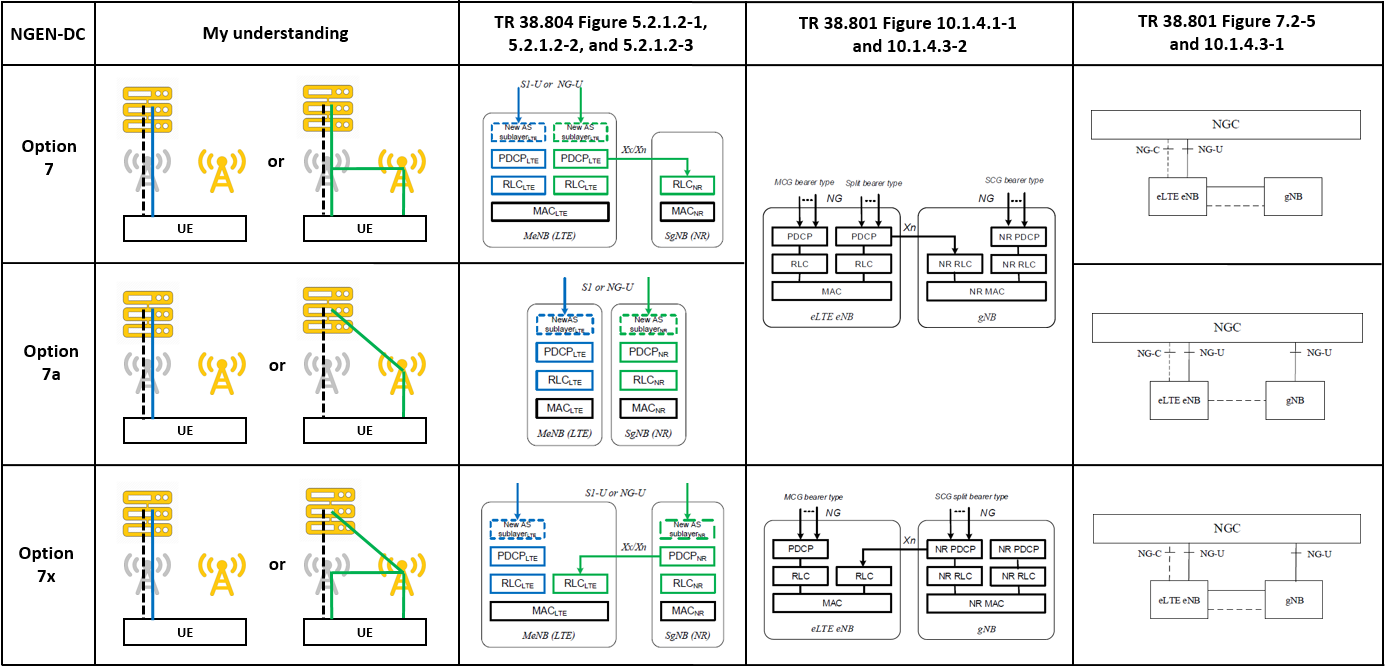
With option 7 (7/7a/7x) family, the same Radio Access Network itself is not changed from option 3 family, but RAN is connected to 5G Core Network instead. In order to differentiate option 7 family from others, it is called NGEN-DC (NG-RAN E-UTRA NR - Dual Connectivity).

Here is the summary on option 7 family based on TR 38.801 and TR 38.804. (click to zoom this)


Option 4 (4/4a) family


Once 5G Core Network is deployed and work with NG-RAN, the next step would be option 4 family or option 2. I am not sure how practically useful option 4 family. Anyways here is the summary on option 4 family based on TR 38.801 and TR 38.804. (click to zoom this)


# References


5G NR Frame structure and Slot configuration

Unlike LTE, there are multiple options available in order to cover various scenarios like eMBB, URLLC, or mMTC.

Frame structure with Numerologies


10 subframes (= 20 slots) are fit into 10 ms in LTE while various number of slots depending on Numerology are fit into 10 ms in 5G NR. Yes it brought multiple options in sub-carrier spacing, which is called as Numerologies; 15 through 240 kHz. Let me illustrate New Radio frame structures with multiple SCS below.


It is hard to see this type of illustration because there are multiple sub-carrier spacing and it is barely provided as a picture. I was able to draw this above as putting pieces together; TS 38.211 Table 4.2-1 and Table 4.3.2-1. Both table would be combined into one with my understanding here.


For your reference, let's compare the LTE frame and 5G NR's with 15 kHz. As long as you would see both subframe and slot at the same time, you would get confused. LTE resource would be allocated every subframe base while NR's would be done every slot base.


Slot configuration with Numerologies


As you can see, 14 symbols would be stuffed in a single subframe (= 2 slots = 1 ms) in LTE while the same number of symbols would be fit into a single slot (= 1 subframe = 1 ms) in NR with 15 kHz SCS. In LTE, 14 symbols would be fit into a single subframe, which is always 1 ms. In NR, 14 symbols would be done into a single slot, which varies per subcarrier spacing. Since the absolute slot size (length) are defined differently as SCS, it seems quite confusing to us. 

As you can see, 15 through 240 kHz sub-carrier spacing are defined in TS 38.211 Table 4.2-1. The frame structures are defined in TS 38.211 Table 4.3.2-1. Both table would be combined into one with my understanding here. 


If we compare the top 4 SCS slot configuration, it can be illustrated below. The same number of symbols would be delivered in different time slot and frequency spans below. A larger monitor would give you this real big picture.


Slot format - stuffing with symbols


In 5G NR, we would have to differentiate paired frequency and duplex time. If paired frequency bands are used, full duplex (FDD - Frequency Duplex Division) can be used simply. If unpaired one is used, time duplex (TDD - Time Duplex Division) should be used. Especially 5G NR would call it dynamic TDD.

There are a few different subframe configuration in LTE, which is not available any more in 5G NR. So the configuration based on Slot would be broadcast from SIB1 or/and configured with RRC Connection Reconfiguration message.

Here is an example log for TDD slot allocation.

tdd-UL-DL-ConfigurationCommon
  referenceSubcarrierSpacing --- kHz30(1)
  dl-UL-TransmissionPeriodicity --- ms5(6)
  nrofDownlinkSlots --- 0x7(7)
  nrofDownlinkSymbols --- 0x8(8)
  nrofUplinkSlots --- 0x2(2)
  nrofUplinkSymbols --- 0x4(4)

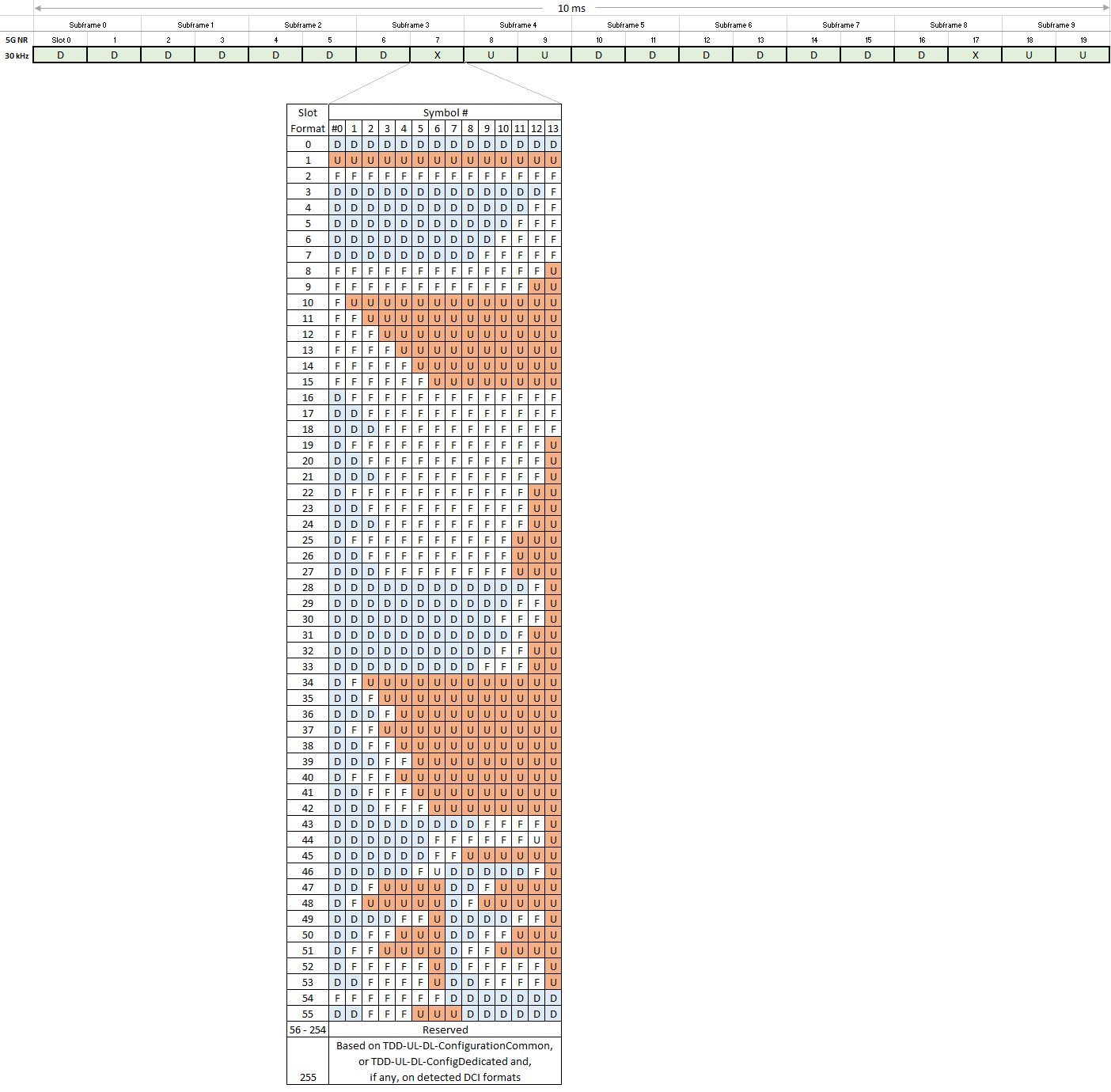
This would mean sequential 7 DL slots and, 8 DL symbols + 2 Flexible symbols + 4 UL symbols on the mixed slot, and then sequential 2 UL slots. It can be illustrated below.


The slot format with symbols for the mixed slot would be configured with signalling (tdd-UL-DL-ConfigurationCommon or/and tdd-UL-DL-ConfigurationDedicated) or DCI without signalling. Here is the whole slot format table below, which comes from TS 38.213 Table 11.1.1-1.


# Reference

  • TS 38.213 Physical layer procedure for control
  • TS 38.101-1 User Equipment (UE) radio transmission and reception - Part 1: Range 1 Standalone
  • TS 38.101-2 User Equipment (UE) radio transmission and reception - Part 2: Range 2 Standalone

5G NR fundamental terms

Let's go over new terms with 5G NR assuming you are familiar with 4G or LTE.


  • 5G: The 5th generation cellular communications. 
  • 5G NR: 5G New Radio.
  • 5GC: 5G Core Network.
  • 5QI: 5G QoS Identifier, which can be allocated to a QoS Flow.
  • AMF: Access and Mobility Management Function - It handles NAS communications and mobility. 
  • ARP: Allocation and Retention Priority - NG-RAN can allocate its resources relatively per QoS flow compared to others by using Allocation and Retention Priority IE. 
  • BA: Bandwidth Adaptation - BWP (Bandwidth Parts) is a subset of channel bandwidth and Bandwidth Adaptation would be done by configuring the UE with BWP(s) and telling the UE which of the configured BWPs is currently the active one.  
  • BWP: Bandwidth Parts - It is a subset bandwidth of the total cell bandwidth of a cell. 
  • CFRA: Contention Free Random Access - Random Access procedure when a dedicated resource is decided. It would be used for adding PSCell to PCell. 
  • CORESET: Control Resource Set.


TS 38.300 Figure 4.1-1 Overall Architecture

  • en-gNB: Variant Next Generation Node B - Node provides NR user plane and control plane protocol to the UE. It would act as Secondary Node in EN-DC. 
  • EN-DC: EUTRA-NG Dual Connectivity - It would work with eNB as a Master Node and (en-)gNB as a Secondary. This term is officially used in 3GPP Technical Specifications replacing deployment option 3 family (3/3a/3x) 3GPP Technical Report. 
  • gNB: Next Generation Node B - Node provides NR user plane and control plane protocol to the UE, and connected via the NG interface to 5GC. It would act as Secondary Node in NGEN-DC. 
  • I-RNTI: Inactive RNTI.
  • INT-RNTI: Interruption RNTI.
  • LDPC: Low Density Parity Check - It would be used to decode NR PDSCH. 
  • MCG: Master Cell Group in MR-DC - A group of serving cells associated with the Master Node (PCell - Primary Cell) and optionally one or more SCells. 
  • MN: Master Node - Radio access node to provide the control connection to the core network. It can be a MeNB (Master eNB) in EN-DC, a Mng-eNB (Master ng-eNB) in NGEN-DC, or a MgNB (Master gNB) in NE-DC or NR-DC. 
  • MICO: Mobile Initiated Connection Only.
  • MFBR: Maximum Flow Bit Rate.
  • MR-DC: Multi-Radio Dual Connectivity - Dual Connectivity between E-UTRA and NR nodes, or between two NR nodes. 
  • NCGI: NR Cell Global Identifier. 
  • NE-DC: Next Generation EUTRA Dual Connectivity. This term is officially used in 3GPP Technical Specifications replacing deployment option 4 family (4/4a) 3GPP Technical Report. 
  • NGEN-DC: NG Core compatible EN-DC - It would work with ng-eNB as a Master Node and gNB as a Secondary. This term is officially used in 3GPP Technical Specifications replacing deployment option 7 family (7/7a/7x) 3GPP Technical Report. 
  • ng-eNB: NG interface connected eNB - Node provides LTE user plane and control plane protocol to the UE, and connected via the NG interface to 5GC. It would act as Master Node in EN-DC, or Secondary in NE-DC.
  • NG Interface: Interface between gNB and 5GC. 
  • NG-RAN: Either a gNB or an ng-eNB.
  • NR: New Radio Access for 5G.
  • Numerology: One subcarrier spacing in the frequency domain. 
  • Deployment Options: Various different network deployment options were proposed in 3GPP Technical Report. The most smooth deployment path is going to be Option 3 family (3/3a/3x), and it goes to option 7 (7/7a/7x), and then it goes to option 4 (4/4a). 
  • PCell: SpCell of a master cell group.
  • PSCell: SpCell of a secondary cell group.
  • QFI: QoS Flow ID, which is marked with a 5QI. 
  • RANAC: RAN-based Notification Area Code.
  • RMSI: Remaining Minimum System Information.
  • RNA: RAN-based Notification Area.
  • RNAU: RAN-based Notification Area Update.
  • SD: Slice Differentiator.
  • SFI-RNTI: Slot Format Indication RNTI.
  • SCG: Secondary Cell Group in MR-DC - A group of serving cells associated with the Secondary Node (PSCell - Primary Secondary Cell) and optionally one or more SCells. 
  • Slot Format: Symbol DL/UL structure based on a Slot for NR.
  • SMF: Session Management Function.
  • S-NSSAI: Single Network Slice Selection Assistance Information.
  • SpCell: Primary cell of a master or secondary cell group.
  • Split bearer: A radio bearer with RLC bearers both in MCG and SCG, which share the same PDCP in common. 
  • Split SRB: A SRB between the MN and the UE with RLC bearers both in MCG and SCG, which share the same PDCP in common. 
  • SRB3: A direct SRB between the SN and the UE in EN-DC, NGEN-DC, and NR-DC. 
  • SUL: Supplementary Uplink - Uplink only frequency band defined for 5G. 
  • UPF: User Plane Function.
  • URLLC: Ultra-Reliable and Low Latency Communications.
  • Xn: Interface among gNBs.

# References

  • TS 38.300 NR and NG-RAN Overall Description
  • TS 38.413 Physical layer procedures for control - 8.2.1 PDU Session Resource Setup
  • TS 38.213 Physical layer procedures for control - 11.1.1 UE procedure for determining slot format

Command Line in Linux

Yes as you may heard of it, Linux would be operated with commands like Dos commands in Windows. This command also would be called Shell scripting as well. Those Linux commands would work under Bash scripting like batch files in Windows as well. All of my description will walk you through with Ubuntu. 

Essential and convenient shortcut keys


Before looking into commands, these shortcut keys could make your life easy. 

Ctrl+Alt+T

Launch Terminal on Unity.  

Tab

In a terminal, it would completed automatically if there is only one option, otherwise all available options. It would be really great if we would have to type a long file name.

MiddleMouseButton

It would work with "copy and paste at the same time, if a text is highlighted somewhere else on Terminal. 

ArrowUp
ArrowDown
Scroll and edit the command history, which would be executed being followed by <Enter>.

Shift+PageUp
Scroll page up on Terminal.

Shift+PageDown
Scroll page down on Terminal. 

Ctrl+s
Stop any transferring to the Terminal. 

Ctrl+q

Resume transferring to the Terminal. It would be worth trying if Terminal stops responding strange way.

Ctrl+c

Kill the current process. 

Ctrl+z

Send the current process to the background. On the Terminal perspective, it may look like working same as Ctrl+c.

Ctrl+Alt+Del

Show shut down or reboot system options to users. 

Command Line Syntax


In Linux we should use Upper and Lower case precisely because it is sensitive on it. Even searching a certain file on Linux, it should be taken care of.

All commands should be used under one of the following two rules below since OBJECT should be required necessarily or optionally. 

  • command [options] [arguments]
  • command [options] [arguments] OBJECT
Some commands may have either [options] or [arguments], or both of them depending on cases. But mostly commands should work without [options] or [arguments]. And commands could be composed of several words. 

Sanity Expressions


Before jumping into command lines, learning essential expressions would help us to use commands fluently. 

/
Root or Slash. If it is used alone, it would mean "/" directory, which is called Root. If it is done with a directory or several other directories including several /, it would mean one of directory path. 

~
Tilde. It means your home directory. With this, you can easily move down to one of sub-directory under home directory. 

.
Dot. It means the current directory where you are. With this, you can easily move down to one of sub-directory under the current one. 

..
Two dots. It means a parent directory above where you are now. You can simply move up with this. 


|
Pipe. Send output of left-side command execution to right-side as input of the right-side command. It can be used multiple times consequently. 
Note : || would work as OR operator.


&
Ampersand. If it is used any command, the command would run in background. Eg) COMMAND&
Note : && would work as AND operator.

;
Semi colon. Connects several commands sequentially. Unlike |, there is no certain relations among the used commands in-between.

\
Back slash. It would work like concatenation operator. When a space or special character is required, they can be used after \.

PROGRAM
Launch a certain program from Terminal with program name itself. You can just simply type the program on Terminal.

killall PROGRAM
Kill program(s) by name. 

man [Option] COMMAND
Stands for Manual, which requires any COMMAND as an object. 

COMMAND --help
Shows us usage of the command.

Common commands including system information


pwd
Stands for "Print Working Directory" and print the current working path in full name.

cd DIRECTORY
Stands for "Change Directory" and requires a full path as an object.

ls [Option] [File]
Stands for "LiSt" and shows you files in the current directory where you are.
-a, --all : Do not ignore entries starting with ".", which means really everything.
-A, --almost-all : Do not list implied "." and "..".
-c : List entries by columns.
-d : List directories, not their contents. 
-l : Use a long listing format.
-t : Sort by modification time, newest first. 

exit
Logout from Terminal you are using now. If there are multiple Terminals, you can move to another one once it is used. 

reset
Restore a screwed-up Terminal to default settings. 

hostname
Print the name of local host you are currently working on. 

whoami
Print the login name.

who [Option]
Print all usernames and info currently logged in.

id [Option] [USERNAME]
Print real and effective user and group IDs.

finger USERNAME
Lookup user information like login name, mail, plan, or etc. with a program, which is required to be installed if it is tried first time. 

date [Option] [Format]
Print or set the system date and time. 
-d : Display time described by the following string format. Eg) date -d 20161201
-r : Display the last modification time of File. Eg) date -r Filename
-s : Set time described by the following string format. Eg) date -d 20161211

uptime [Option]
Tell how long the system has been running after booted. 

last [Option] [Username] [tty]
Show listing of users last logged-in on your system.

history
Display GNU history of commands you have been used so far. 

uname
Information on your server that you log on now. 
-a : All.
-r : Kernel release.
-v : Kernel version.
-p : Processor type. 

free [Option]
Display amount of free and used memory in the system. 
-b : In Bytes.
-k : In Kilobytes, which is default. 
-m : In Megabytes.
-g : In Gigabytes.
-h : Automatically scaled to shortest three digit unit for human being. 
-t : Add a line showing the column totals.

df [Option]
Stands for "Disk Free", which will be reported. 
-a : Include all pseudo, duplicate, inaccessible file systems.
-B SIZE : Scaled by size unit. Eg) df -B MB
-h : Human readable format and units.

lsmod
Stands for "LiSt MODules in Linux Kernel". It is showed nicely from /proc/modules of your system. 

echo
Display a line of text.

shutdown [Option] [Time] [Message]
Will shut down your system. It will be done in a minute as default with no option. You may overwrite with another shutdown commands or cancel the shutdown command with -c option.  
-h : Power off the machine, which is identical to power off, -P.
-H : Halt the machine. 
-P : Power off the machine, which is identical to power off, -h.
-r : Reboot the machine.  
-c : Cancel shutdown command. 
[Time]
It can be set like following examples. Eg) shutdown 17:20 (at 17:20), shutdown +5 (in 5 minutes), shutdown (in 5 minutes)shutdown now
[Message] 
This message would be shown just right before shutting down, which requires [Time] all the time. 

Basic operations


cp [Option] SOURCE DEST 
cp [Option] SOURCE DIRECTORY
cp [Option] -t DIRECTORY SOURCE
Stands for "CoPy", which requires at least SOURCE and others as usage. SOURCE can be multiple files or a directory itself. 
-i : Prompt before overwrite.
-n : No overwrite existing files.
-r, -R : Copy directories recursively.

mv [Option] SOURCE DEST
mv [Option] SOURCE DIRECTORY
mv [Option] -t DIRECTORY SOURCE
Stands for "MoVe" files to somewhere.
-f : Do not prompt before overwrite.
-i : Prompt before overwrite.
-n : No overwrite existing files.

rm [files]
rm [Option] [FILE]
rm [-r] [files]
Stands for "ReMove". 
-f : Ignore nonexistent files with no prompt. 
-i : Prompt before removal.
-r, -R : Remove directories and their contents recursively.

mcopy [Option] SOURCEFILE TARGETFILE
mcopy [Option] SOURCEFILE [SOURCEFILES...] TARGETDIRECTORY
Copy MSDOS files from/to Unix.

mkdir [Option] DIRECTORY
Stands for "MaKe a new DIRectory".
-m : MODE as permission mode, rwx rwx rwx. 
-p : No error if existing. Make parent directories as needed.

rmdir [Option] DIRECTORY
Stands for "ReMove a DIRectory". 
-p : Remove directory and its ancestor. Eg) "rmdir -p a/b/c" would equal to "rmdir a a/b a/b/c"

File manipulation


cat [Option] [FILE]
"ConCATenate" files and print on the standard output. Eg) cat myfile.txt

more [Option] FILE
COMMAND | more [Option]
Display output on a screen at a time.
-p : Instead of doing not scroll, clear the whole screen and display text.
-c : Instead of doing not scroll, paint each screen from the top, clearing the remainder of each line as it is displayed. 
+NUM : Start at line number NUM.

less [Option]
COMMAND | less [Option]
Display output on a screen at a time.
-e : Quit at EndOfFile.
-n : Use line numbers.
-x : Set tab stops.

touch [Option] FILE
Make files or update the access and modification times of each file to the current time.
-a TIME : Change only the access time. 
-d DATE : Change DATE including Month, Day, and Time.

find [Option] [Path] [Expression]
Search for files or Expression in a directory hierarchy, Path. Default path is the current directory.
-print : Print the full file name on the standard output.
-name : File name.
-size : File size units of space, rounding up.

grep [Options] STRING [File]
Search for STRING in each File. STRING is a basic regular expression (BRE) as default and File can be defined. 
-A NUM : Print NUM lines of trailing context after matching lines. 
-a TEXT : Process a binary file as it is were text.
-B NUM : Print NUM lines of leading context before matching lines. 
-C NUM : Print NUM lines of output context. 
-c COUNT : Suppress normal output.
-i : Ignore case distinctions in both STRING and Files. 
-n NUM : Prefix each line of output with the line number within its input file. 
-R, -r : Recursive.

awk [Option] 'PATTERN' FILE
Stands for "Aho (Hello), Weinberger and Kernighan". It is not a simple command but an interpreter for the AWK Programming Language, which is useful in finding and replacing text within file(s). PATTERN can be expressed as a simple text or combination with operators. Eg) awk 'NR % 2 == 0' data

Process Control


ps [Option]
Stands for "Process Status", which report the processes currently run by the current user. 
-A : Select all processes, which is identical to -e.
-a : Select all processes except both session leaders and non-associated processes to a terminal. 
-d : Select all processes except session leaders.
-e : Select all processes, which is identical to -A.
-f : Do with full list.
PID : List up process ID, PID.

top 
Keep listing the currently running processes, stored by CPU usage, which look like the one in Task Manager of Windows.

fg PID
Stands for 'ForeGround'. Stop process to the foreground or bring a background.

bg PID
Stands for 'BackGround'. Send the process to the background. 
Note : COMMAND& would run COMMAND in the background. 

batch COMMAND
Run COMMAND when the system load is low. I may log out, which let the process keep running.

kill PID
Force a process shutdown. PID can be got using ps command. 

Network applications


ifconfig [Options] [INTERFACE]
ifconfig [Options] INTERFACE ADDRESS
Configure a network interface. INTERFACE should be the name of the interface, for example eth0. If flag indicates up, which is activated otherwise, it says down.
-a : Display all.
-s : Display a short list. 
mtu N : Set MTU of an interface. 
dstaddr addr : Set a remote IP address.
netmask addr : Set the IP network mask for this interface. 
address : IP address to be assigned to the interface. 

ethtool DEVNAME
Query or control network driver and hardware settings. Eg) ethtool eth0

ip [Options] OBJECT [COMMAND] [Options]
-h : Human readable. 
-s : Statistics mode.
-t : Display time stamp. 
OBJECT
address : IPv4 or IPv6 address on a device.
maddress : Multicast address.
monitor : Watch for netlink messages.
route : routing table entry.
Eg) "ip addr show", "ip addr add 1.2.3.4/24 brd + dev eth0", "iroute show", "ip route add default via 1.2.3.254"

ftp [HOST]
Execute FTP access to the HOST, which can be IP address or host name. 

nslookup [Option] [HOST]
A program to query the Internet name servers interactively.

ping [HOST]
Send ping commands several times to the HOST, which can be a host name or an IP address. 

route
route add TARGET
route del TARGET
Show or manipulate the IP routing table. 

netstat

Print network connections, routing tables, interface statistics. 


Administration


su 
Stands for "Super Users". Switch user ID to root privilege user, which is called superuser. Since no password is created for root user as default in Ubuntu, it is not allowed to be accessed without making a password for the root user. 
It sounds like similar to sudo command but su -c would be identical to sudo command. 
-c COMMAND : Execute COMMAND as root user.

sudo
Stands for "Super Users DO". Execute commands as root privilege user or superuser. Since root privilege was given to default user for example, 'taehee' on my system, the password for user 'taehee' user would be required. Once you have a message starting with "Only root may..",  sudo should be front of other executable command. 
It might be confusing but sudo -i would be identical to su command. 
Here is great posting simply explaining differences between su and sudo at  
www.linux.com/blog/how-use-sudo-and-su-commands-linux-introduction.
-i : Run the shell specified by the target user's password.

adduser [Options] USER
adduser SYSTEM [Options] USER
adduser [Options] USER GROUP
addgroup [Options] GROUP
addgroup SYSTEM [Options] GROUP
Add user or group to certain group.
-q : Do not give process information to stdout.
-c FILE : Use FILE as configuration file.

passwd [Options] [USER]
Change user password. Once it is sent, the system will ask you a new password.

chmod [Option] MODE FILE
chmod [Option] FILE
Change a current permission mode of each FILE to another permission MODE; read (r), write (w), and execute (x). And these three are repeated per user, group, and all (world), which means total 9. Then it could be like rwxrwxrwx, or rwxr--r--. 
MODE 
It can be added with +, removed with -, or set with =. Eg) chmod a-x file, chomod u+x testfile, chmod =rwx, g+s file
-R : Recursive.

fdisk [Options] DEVICE
Manipulate disk partition table of the DEVICE.

mount
mount -a [Options]
mount [Options] DEVICE|DIR
Mount a file system.

umount DEVICE
umount -a [Options]
Unmount file systems. 
-a : All of file systems.
-f : Force an unmount. 

tar [Option] [FILE]
Tar archiving utility. Tape archive (compress or uncompressed depending on options)
-A FILE : Append tar files to an archive.
-c FILE : Create a new archive.
-d : Find differences between archive and file system.
-r : Append files to the end of an archive. 
-t : List the contents of an archive. 
-x : Extract files from an archive.

zip [FILE]
Package and compress archive files. 
-A : Adjust self-extracting .exe files. 
-d : Delete entries in zip file.
-m : Move into zip file from OS files. 
-r : Recurse into directories.
-0 : Store only.
-q : Quiet operation without showing progress.

unzip [Options] FILE
Unzip FILE. 


Ubuntu As A Begineer

Since I am a newbie to Linux, I would like to write what I felt based on what I familiar with Windows. There are several things I was not familiar so I would introduce what those are. 


Unity Interface


The most common interface on Ubuntu would Unity. Desktop term was confusing me so here are definition of each part of Unity interface. 


Desktop is the blank part, which would be used when any applications are launched. Dash is a sort of Search in Ubuntu. Panel shows us menu of an application, which is launched once.


Version Management - Standard Releases vs. Long Term Releases (LTS)


It is said a new release of version would be distributed every April and October. There are two different releases; Standard and LTS (Long Term Release). Support period for normal ones would be 9 months while LTS would be 5 years. And each release has its own code name.


Most of recent releases are listed on tables with code name at wiki.ubuntu.com/Releases. It is represented with nice graphs at www.ubuntu.com/info/release-end-of-life.


When you are on certain release of Ubuntu now, the end of support period can be checked with a simple command like ubutu-support-status above.

Directory Structure


Once any Linux is installed, you might notice it has quite different directory structure than Windows. Here is what I have learned while using Ubuntu for a while. Most of Linux have common directory structure but a specific distro may have a bit unique structure.


  • / - It is called the root directory and it is different from /root directory. Since all of files and directories are under /, it is equivalent to C:/ in Windows. If another partition, like D:/ drive in Windows is made in Linux, another / will be seen. 

  • /bin - It is called binary folder and it contains the essential binaries of important system programs and utilities such as bash shell. And /usr/bin includes binaries of applications like Firefox while /sbin contains the essential system administration binaries. 

  • /boot - This contains files that needs to start up the system including Linux kernel (vmlinux), GRUB (boot loader). The configuration files which utilise these files are not included in but in /etc folder.

    • /cdrom - Conventional mount point for CD-ROMs and it is default one in Ubuntu.

    • /dev - Contains all real device files like USB or SATA as well as virtual devices, which do not actually correspond to hardware like /dev/random or /dev/null. 

    • /etc - Includes system-global configuration files, which affect the system's behaviour and all programs. It contains the configuration files for boot-time, network and and so on. 

    • /home - This includes your user named folder like /home/tahee all the time and it contains user-specific configuration files. It would be equivalent to C:/User folder in Windows. 

    • /lib - Contains dynamic libraries and kernel modules, which support binaries in /bin and /sbin. This would be equivalent to DLL's in Windows.

    • /media - Intended for external devices like floppies, CDs, or USBs. It would indicate real physical devices, which should be attached to affiliated mounted folder.

    • /mnt - A place for specifically temporarily dedicated devices like floppies or CD-ROM's. Since it is temporarily mounted directory, each folder under this must be attached to physical storage devices before the folder turns to be accessed properly.  

    • /opt - Optional add-on or package folder. It is commonly used by proprietary software that does not follow the standard file system hierarchy. 

    • /proc - Process Information folder, which includes processes and kernel information as files. Since it is virtual one, it does not exist but stays in system memory only.

    • /root - System sensitive files like .gnupg or .cache. This folder is different from "/", which is called root as well. And /root would not allowed to access with normal user starting with ~$. Once it is changed to ~# with sudo -i command, you can access this folder.


    • /run - This directory gives applications a standard place to store information like sockets and process IDs. 

    • /sbin - See /bin above. 

    • /srv - Service Data folder contains services provided by the system. If Apache web server is used, associated website's files would be stored in the folder. 

    • /sys - System-specific Information folder includes kernel's view of the system.

    • /tmp - Temporary Files includes files stored by applications and generally deleted whenever system is restarted or by utilities. 

    • /usr - User Programs folder contains user application.
      • /usr/bin - Non-essential command binaries for all users. It is not needed in single user mode.
      • /usr/include - Standard include files.
      • /usr/lib - Libraries for the binaries in /usr/bin/ and /usr/sbin/.
      • /usr/local - Tertiary hierarchy for local data. 
      • /usr/sbin - Non-essential system binaries. 
      • /usr/share - Architecture-independent or shared data.
      • /usr/src - Source code like the kernel code with header files.

    • /var - Variable Folder includes variable data such as logs, databases, websites and etc. 
      • /var/cache - Application cache data.
      • /var/lib - State information. Persistent data modified by programs as the run. 
      • /var/lock - Locked files keeping track of resources currently in use. 
      • /var/log - Various log files.
      • /var/mail - Users' mailboxes.
      • /var/opt - Variable data from add-on packages. 
      • /var/run - Run-time variable data.
      • /var/spool - Spool for tasks waiting to be processed. 
      • /var/tmp - Temporary files to be preserved between reboots.

    Installed Software List


    When I got started playing with Ubuntu, I could not find out anything similar to Windows' "Uninstall or change a program" in Ubuntu. 


    There is Ubuntu Software Center, which is similar to Windows' "Uninstall or change a program" and plus Apple's App Store. Installing/Uninstalling programs would be available with Ubuntu Software Center but it is not like Apple's App Store, all of applications are not available in Ubuntu Software Center. So these kinds of software applications like Google Chrome or Microsoft Minecraft should be downloaded from the Internet. 


    A bit further advanced version of this is available; Synaptic, which can be downloaded in Ubuntu Software Center. You may refer to https://help.ubuntu.com/stable/ubuntu-help/addremove.html for a bit further details.


    # References